Difficulty
Moderate
Steps
18
Time Required
- 2. Preflight check and disassembly 18 steps

In Progress
This guide is currently being written. Reload periodically to see the latest changes.

Private
This guide will not appear in search results and can only be viewed by team members!
Quiz
0
-
-
The Bear frame is compatible with Prusa stock extruder and X axis as well as Bear extruders (BearExxa, BearMera and Bear X axis with Bondtech extruder).
-
If you are upgrading an existing Original Prusa save all the parts as some will be reused.
-
To save time later, check all of the printed parts. Check that screw holes are clear, to allow the screws to slide in without excessive force.
-
Some steps are showing the Original MK3(S) frame but they are applicable to MK2(S)/MK2.5(S) frame as well.
-
Disclaimer: We share these guides to make your experience as smooth as possible. However, you are responsible for your upgrade, assembly and any damage you cause to your hardware.
-
-
-
Check that your kit contains 7 aluminum extrusions of 4 following length.
-
290mm
-
331mm
-
359mm
-
370mm
-
-
-
Clean up strings from your printed parts with tweezers and a hot air gun (be careful).
-
Carefully check the inside of the holes in the X ends, where the smooth rods will be inserted.
-
Remove any elephant foot with a deburring tool or a file.
-
Check all bridges. If a bridge is falling in its center: heat tweezers with a lighter and press on the area with the poor bridging, to flatten it.
-
-
-
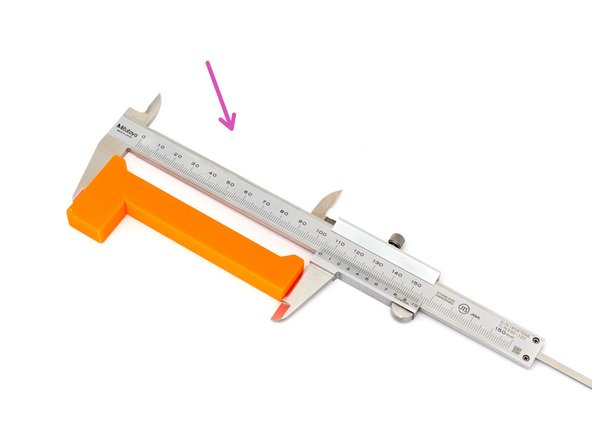
With a caliper, verify the length of the build_helper_z. It must be 106mm +/- 0.5mm.
-
In case it is too long you can file one of the end.
-
In case it is too short you can scale it using PrusaSlicer and reprint.
-
-
-
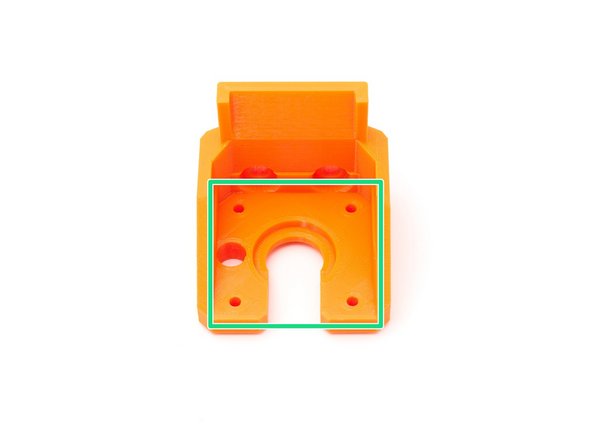
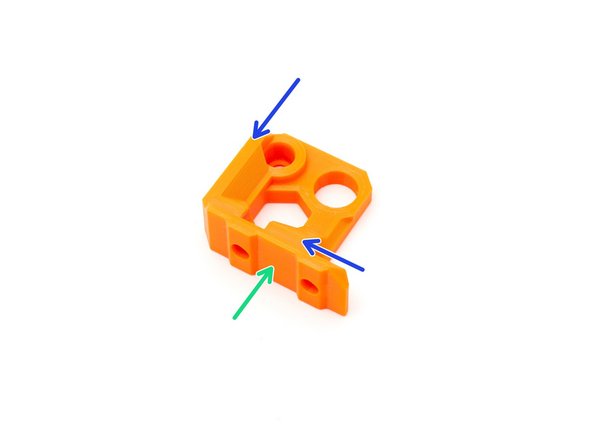
Verify that the internal of z_motor_mount surface is smooth and plane. Clean up if necessary using a file or small carper (you can use a steel ruler if you don't have a small scarper).
-
Verify the surfaces that will enter in contact with extrusions are smooth and plane.
-
Disassemble one of the Z smooth rods on your Prusa and try to insert it inside the Z motor mount hole.
-
If it is too hard to insert the smooth rods you can use an 8mm drill or reamer to increase the hole diameter. Don't pass through the full depth of the hole, only half of it is generally enough and will ensure you keep a tight fit. Remember, don't use powertool but your hands :) !
-
-
-
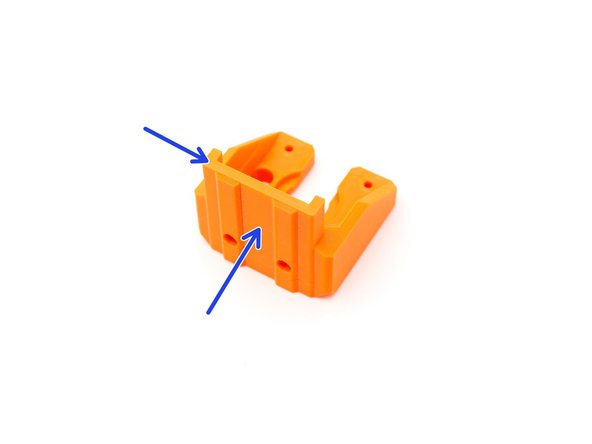
Verify the surfaces on the back of z_tops is smooth and plane.
-
Verify the surfaces that will enter in contact with X axis (X ends) are smooth and plane.
-
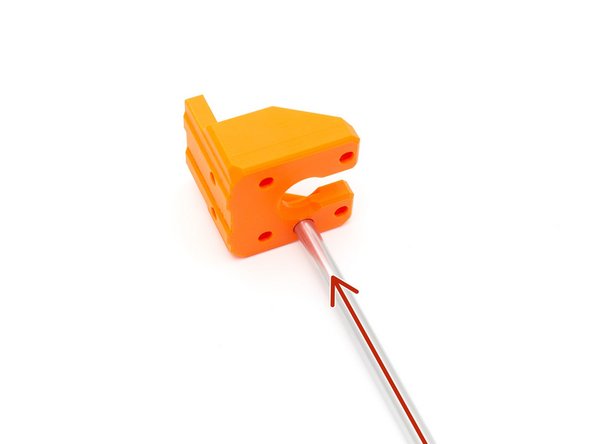
Like in the previous step, test the 8mm hole with one a Z smooth rod.
-
If it is too hard to insert the smooth rods you can use an 8mm drill or reamer to increase the hole diameter. Don't pass through the full depth of the hole, only half of it is generally enough and will ensure you keep a tight fit. Remember, don't use powertool but your hands :) !
-
-
-
Unload the filament and allow the hotend to cool down (otherwise you might jam your hotend). Turn off the printer and remove the power plug.
-
Remove the spool and its holder.
-
Use a tape to identify your Z rods axis (X, Y and Z)
-
If you have a doubt about what are the part names on your 3D printer, have a look to the Prusa's glossary for i3-series: https://help.prusa3d.com/en/article/glos...
-
Double check the printer is not connected to the outlet anymore.
-
-
-
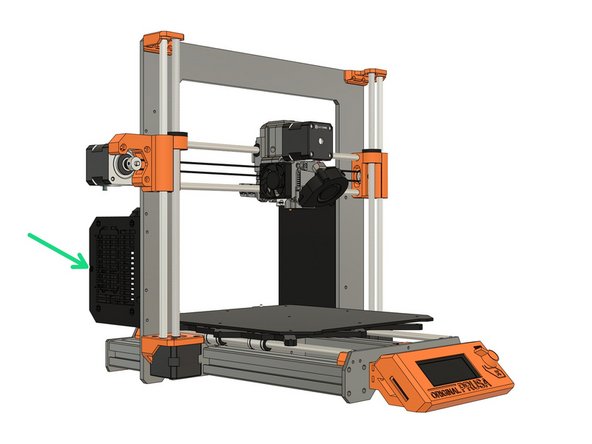
Remove the M3x40 screw securing the Rambo/Einsy cover and disconnect all the cables.
-
Cut all zip ties and release cables of Y and Z axis.
-
Be careful to not cut the cables while cutting the zip ties.
-
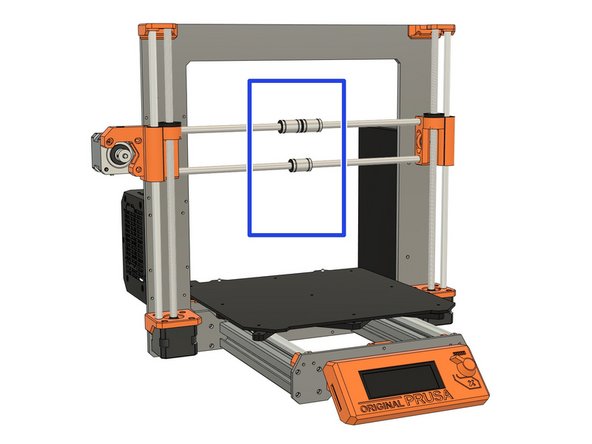
Disassemble the extruder to remove it from the X axis. If you don't know how to proceed, we recommend to follow the assembly guides in reverse.
-
Links to Prusa's assembly guides: mk3s, mk2.5s, mk3, mk2.5, mk2s
-
Links to Bear's extruder assembly guides: Bear extruders guides.
-
Links to Bondtech assembly guides: Bondtech extruders guides
-
-
-
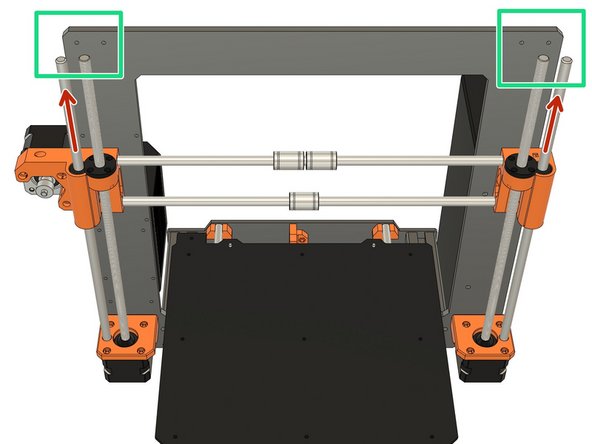
Remove Z tops.
-
Remove Z smooth rods.
-
Rotate the Z leadscrews to move the X axis to remove the X axis. Keep the X axis in a hand when you reach the top to not let if fall down.
-
Keep the X axis in one piece for re-assembly later.
-
-
-
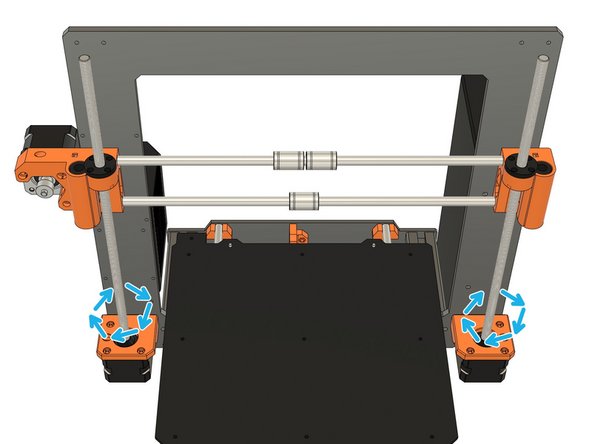
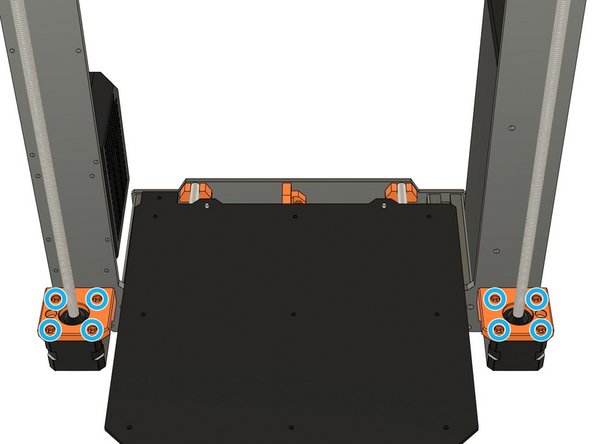
Unscrew the 8x Z motors screws. Be careful, the motors will fall down!
-
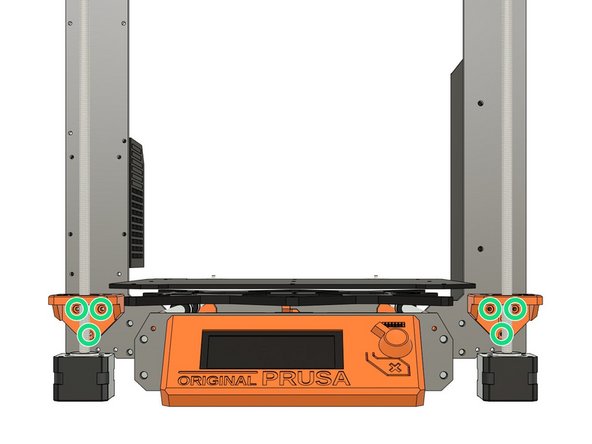
Unscrew the 6x Z motor mount screws. Lift the frame a little bit if you can't access them.
-
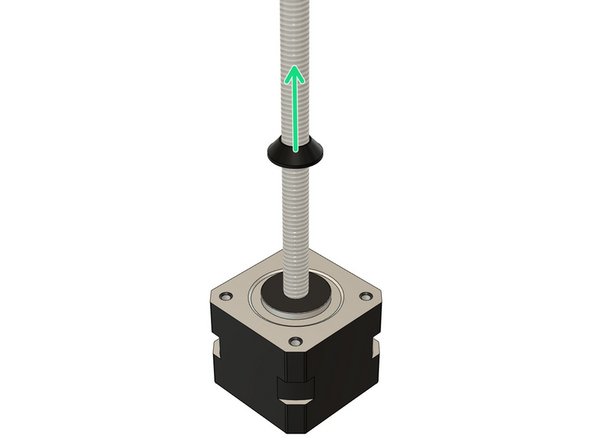
You can now slide out the motor mount from the leadscrews.
-
-
-
Unscrew the Z screw cover on both Z motors.
-
This step is mandatory as the original Z screw covers are not compatible with the Bear motor mounts.
-
-
-
Remove Y axis belt.
-
Remove Y motor. You do ot need to remove the pulley.
-
Remove Y idler mount and disassemble it to save the idler.
-
Remove the Y belt holder on the Y carriage.
-
-
-
Remove zip ties on Y axis rod holders.
-
Un-clip the Y smooth rods from the front and slide the bed forward to remove it completely from the printer.
-
Finish to remove the Y smooth rods.
-
-
-
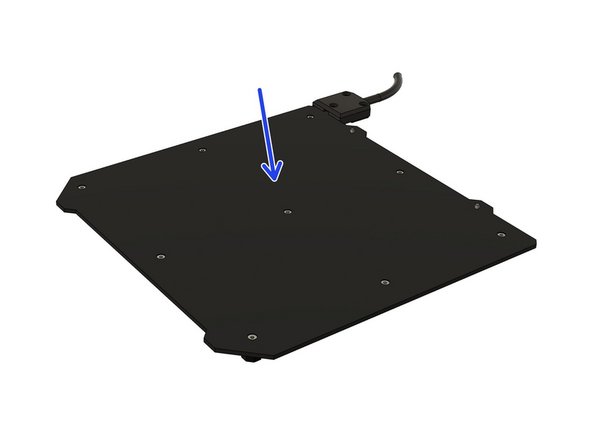
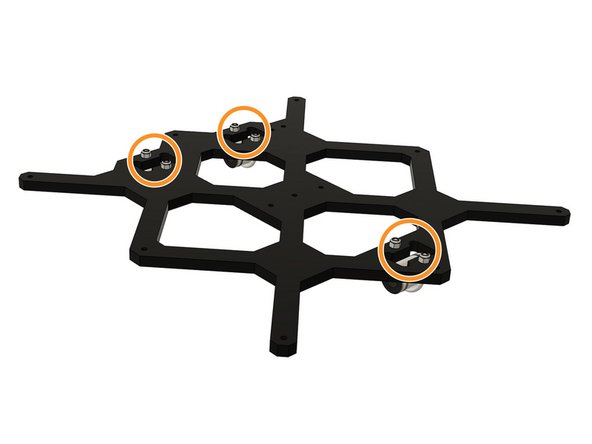
Remove the Y smooth rods from the bearings and disassemble the heatbed from the Y carriage.
-
On MK3(S) there are 9 screws that needs to be unscrewed from the top (under the steel sheet).
-
On MK2(S), MK2.5(S) there are 5 screws that needs to be unscrewed from the bottom.
-
Disassemble the U bolt holding the bearings.
-
-
-
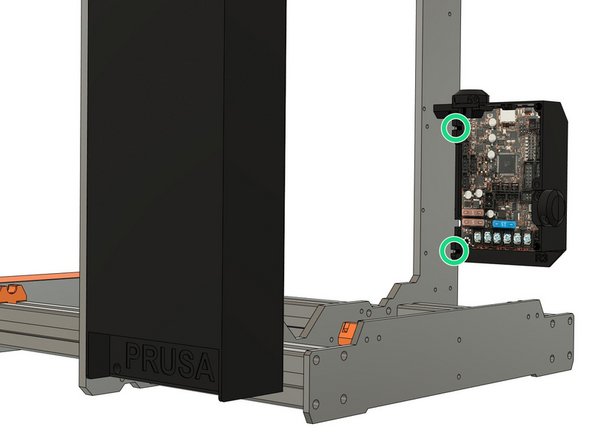
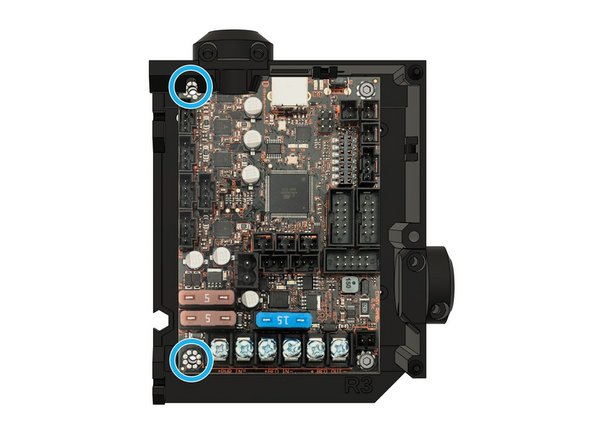
Those image are showing the Rambo Einsy board and cover but the screws on other boards are at the same position.
-
Remove the Rambo cover door and unscrew the M3 screws holding the cover.
-
Remove the two left M3 screws of the Rambo board.
-
Do not unscrew the two right screws.
-
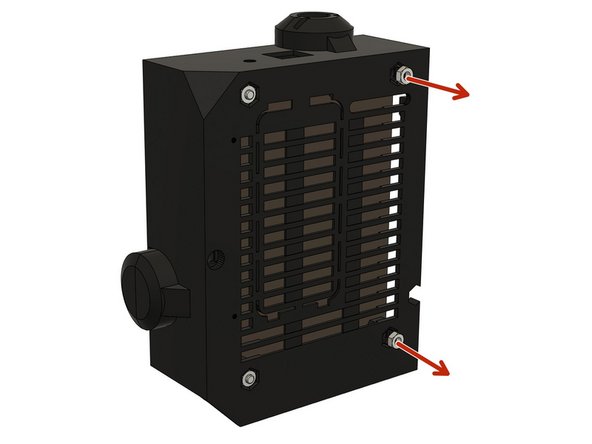
Remove the two right hex nut from the back of the Rambo cover. You can screw an M3 screw on them and pull.
-
-
-
Double check the printer is not connected to the outlet.
-
Disassemble the PSU from the frame.
-
There are different type of PSU, If you don't know how to proceed for the disassembly, we recommend to follow the assembly guides in reverse order.
-
Links to Prusa's assembly guides: mk3s, mk2.5s, mk3, mk2.5, mk2s
-
-
-
Disassemble the LCD screen from the printer by removing the four M3 screws from the front plate.
-
Disassemble the LCD support by removing the two screws at the bottom of the LCD's board.
-
-
-
Say good bye to your old frame (you can kiss it if you really want).
-
Please consider recycling the frame by building another printer or selling it in second hand market.
-
Got to the next chapter: 03. Y axis frame
-